Track Elementor Form Submissions with TagManager and Google Analytics
There are several articles already out there on how to track Elementor form submissions with TagManager. Still, most seem to rely on an element visibility trigger, which is inefficient, or overly elaborate custom JavaScript.
When a form is successfully submitted, Elementor triggers a custom jQuery event called ‘submit_success’. We can use this to push an event to the data layer with various information about the form.
As you can see from the Elementor markup below, the form tag contains a name attribute with the form’s title, and then several hidden fields with various information about the current page.

First, we need a custom HTML tag with our JavaScript to listen to the submit_success event.
<script>
  if (window.jQuery) {
    jQuery(document).ready(function() {
      jQuery(document).on('submit_success', '.elementor-form', function(event) {
        // Push the event to the dataLayer for Google Tag Manager
        window.dataLayer = window.dataLayer || [];
        window.dataLayer.push({
          event: 'elementor_form_submission',
          formName: event.target.getAttribute('name') ||
                    (event.target.querySelector('[name="form_id"]') ? event.target.querySelector('[name="form_id"]').value : 'unknown') ||
                    'unknown',
          formId: (event.target.querySelector('[name="form_id"]') ? event.target.querySelector('[name="form_id"]').value : 'unknown'),
          postTitle: (event.target.querySelector('[name="referer_title"]') ? event.target.querySelector('[name="referer_title"]').value : 'unknown')
        });
      });
    });
  }
</script>
I set that to fire on all pages as the site I’m tracking has them all over the place, but you can make that more specific if needed.
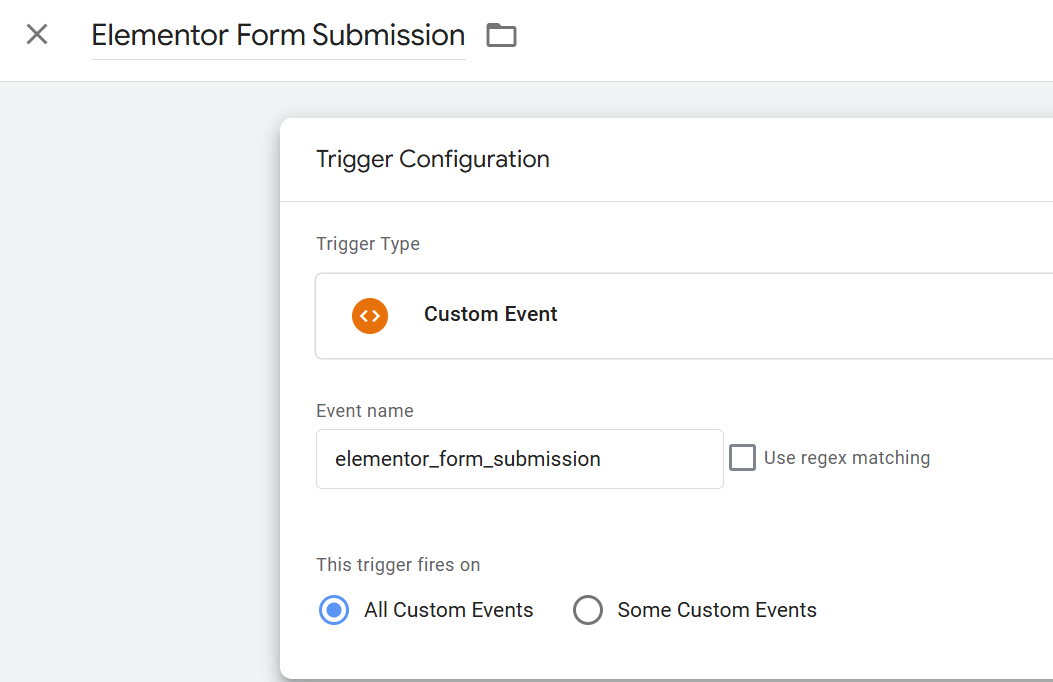
Once the submit_success event fires, we send an event to the data layer with the name elementor_form_submission, which we can use as a trigger.
Name it appropriately, set the type to ‘Custom Event’ and add elementor_form_submission as the name of the event to listen for.
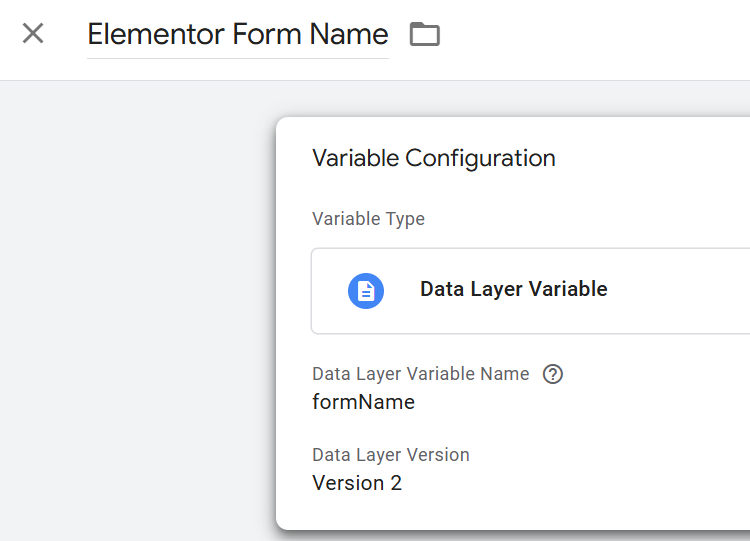
In our submission listener, we sent 3 additional parameters: formName, formId and postTitle. The values for these parameters are taken from the forms’ HTML. Before we can use these parameters, we need to add some custom variables to define them. Go to the variables area and add some new user defined variables of type data layer variable. One for each of our parameters with suitable names.
We now have our form submission listener which fires when a form is submitted, variables to hold the data and a trigger we can use to send a Google Analytics event.
Create a new Analytics Event tag:
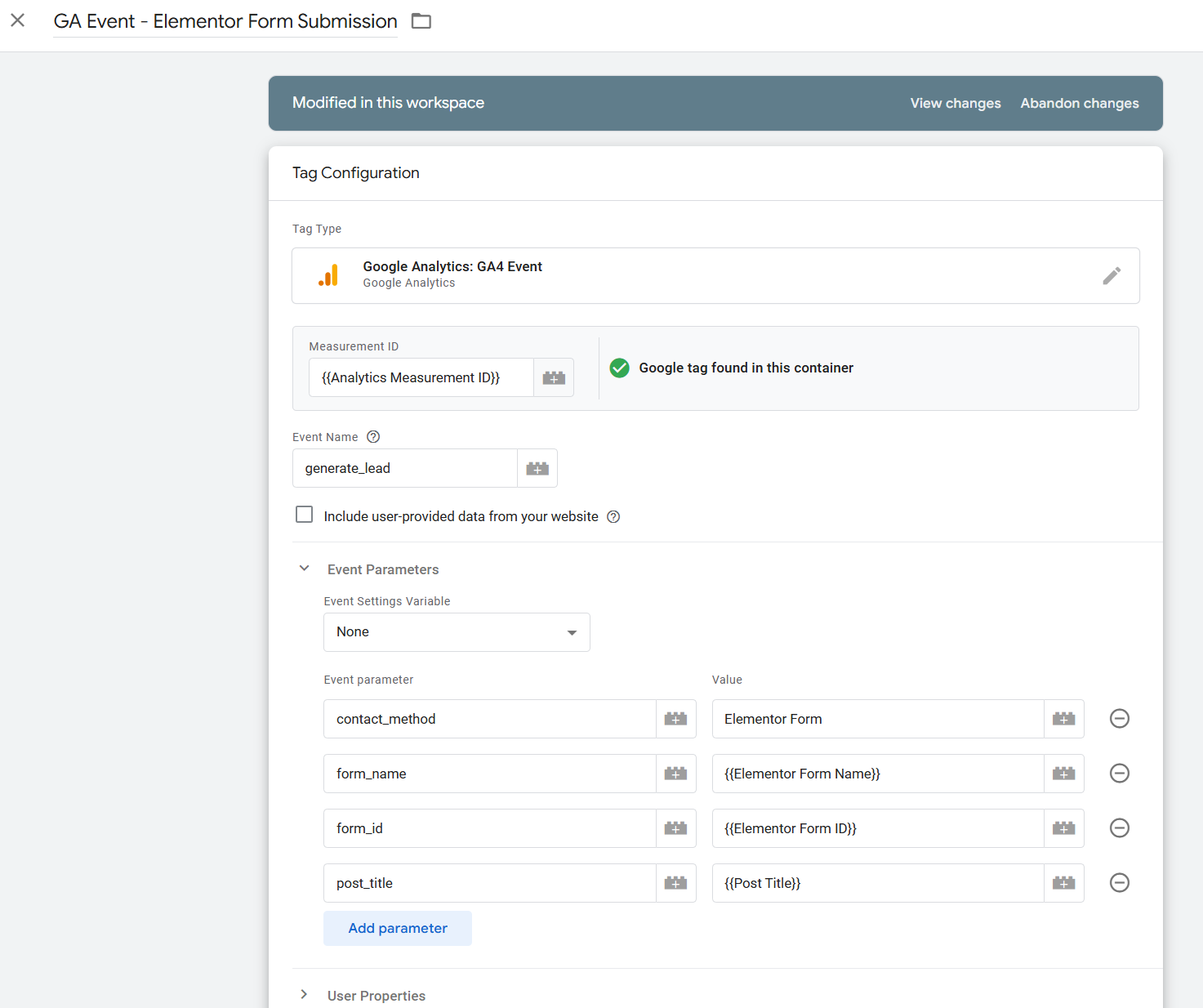
Here, I’m using the recommended event name generate_lead, which I have marked as a key event in analytics. I’ve added a parameter called contact_method which I use to send a custom value of ‘Elementor Form’. Then parameters for form_name, form_id and post_title where I’ve selected our previously defined variables (Click the brick icon to select them). Use our previously defined trigger to fire this tag.
That’s it for TagManager, you can preview, test and then publish the container.
Before the custom parameters can be viewed in Google Analytics, they need to be added as custom definitions in the admin area.
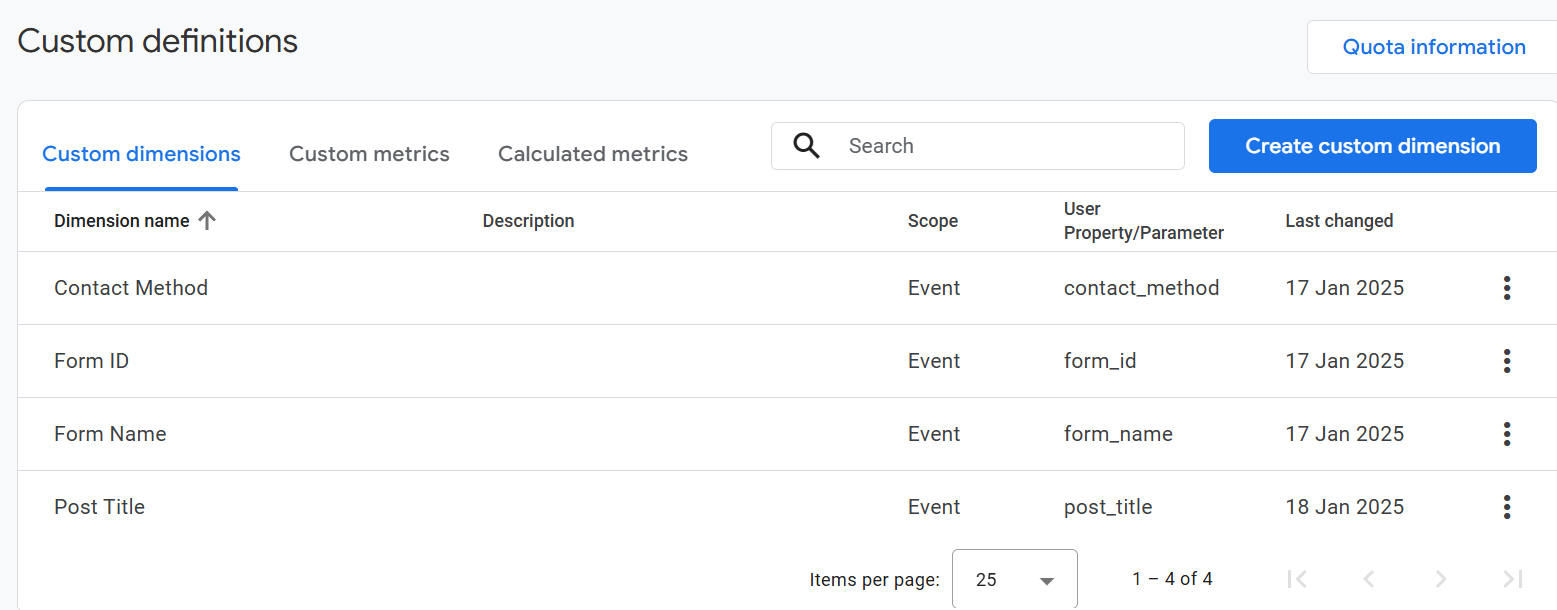
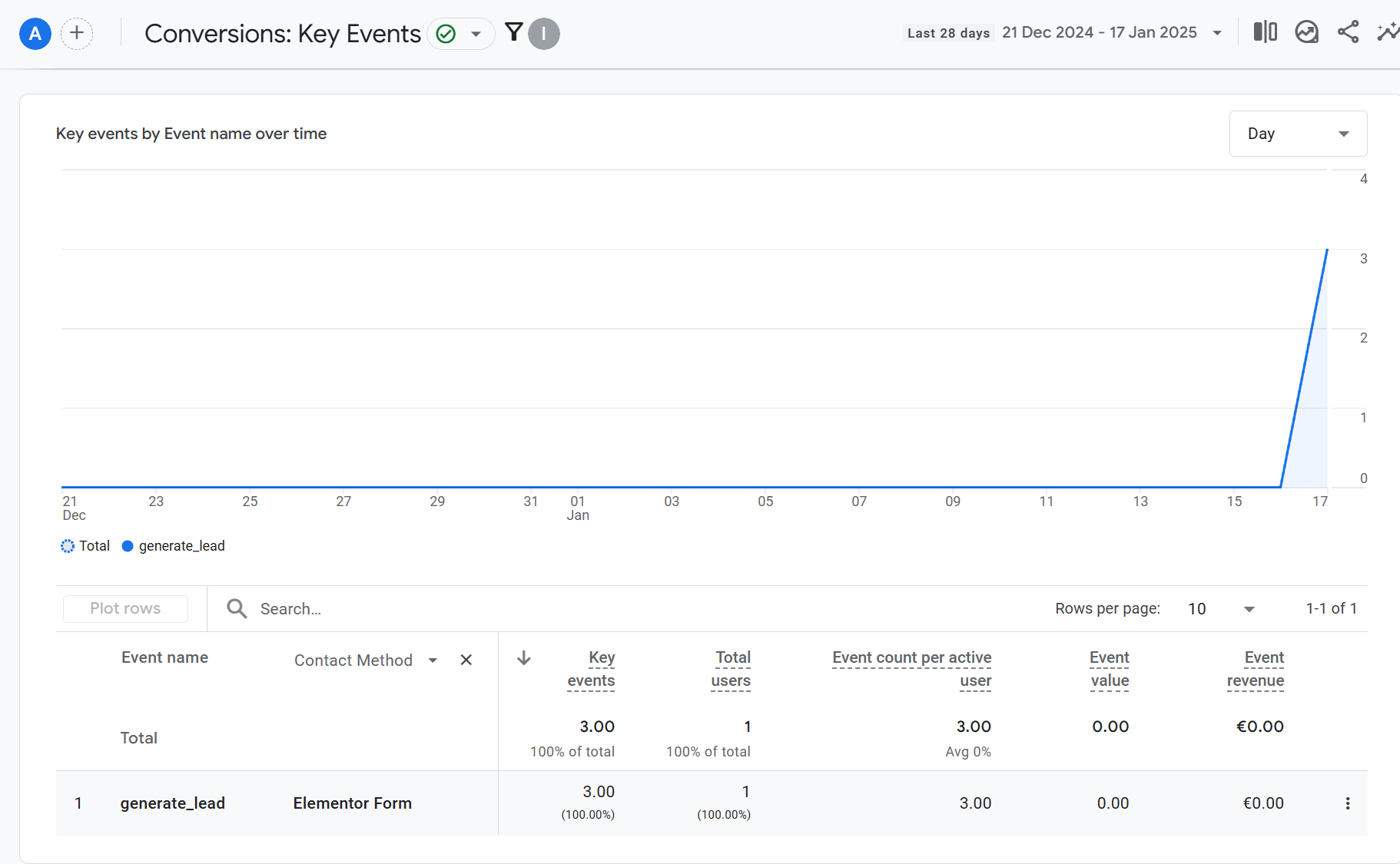
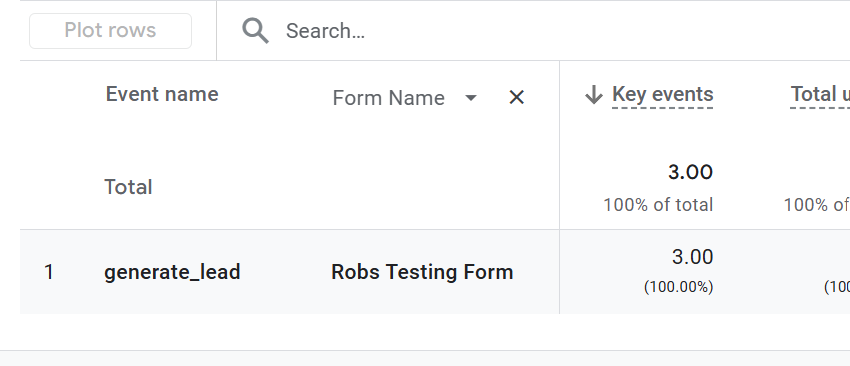
Then, you should be able to see the generate_lead events in your key events report and be able to switch between the custom parameters for a second dimension.